Lorah opens in a chat and stays there. One specialist, your project already in their head, and every control on the box you type in.
Four minutesFreeWhere the app opens
Chat · a Quickstart guide
What it is
The app is a conversation. It opens where you left off, with one specialist who already knows your project.
MayaProduct Lead · owns positioning, scope and the launch page. Works from the approved project memory that fits the task.
What are you working on?What do you need from me?Timer only at launch, or tasting notes too?
Message Maya…
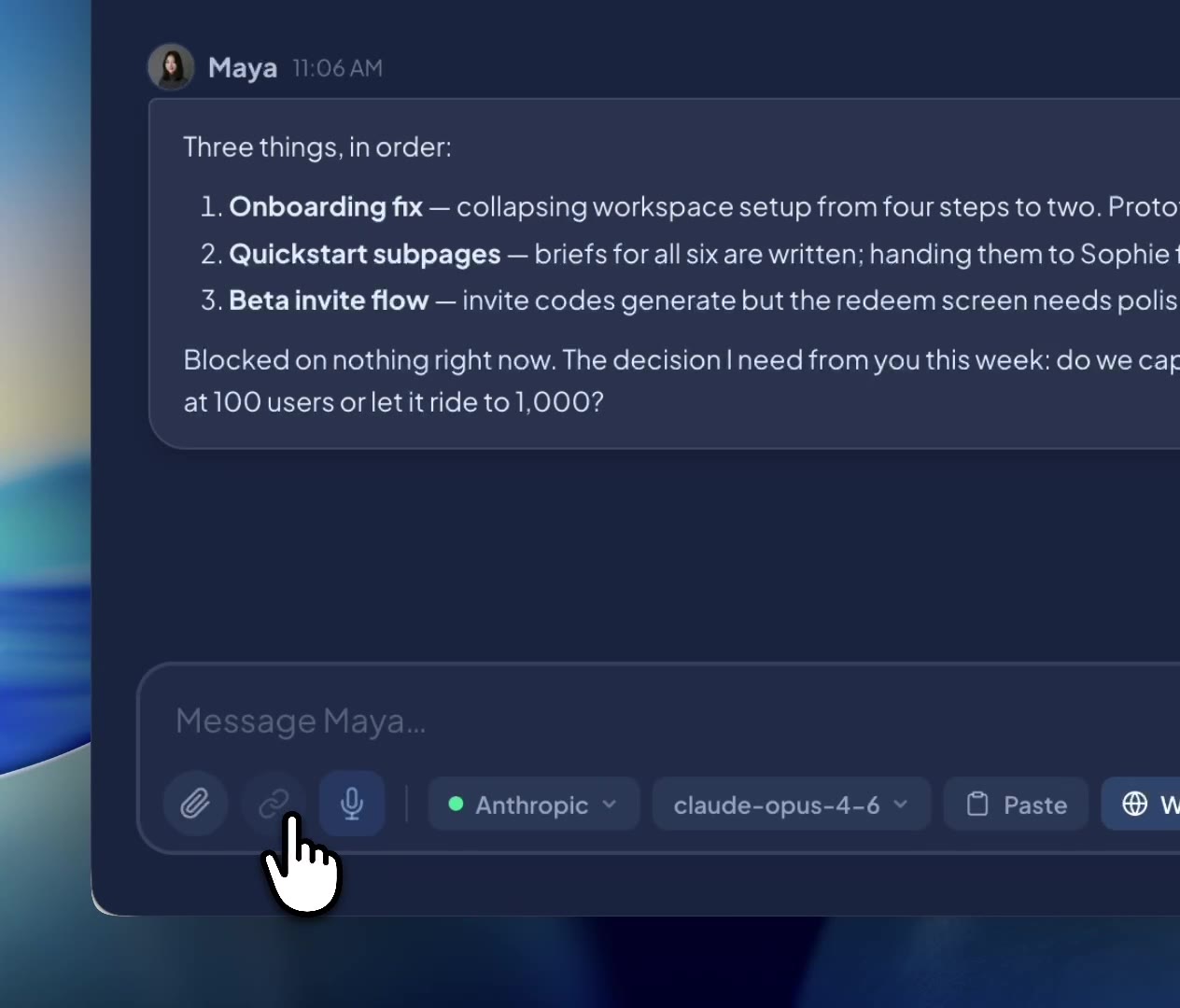
Anthropic ▾claude-opus-4-6 ▾PasteWeb on
A fresh chat: Maya large, with her role and what she handles, three starter questions to click, and the box. The first two are good for your first five minutes: see what a specialist thinks their job is, and surface their open questions before a sync.
Opens where you left off.Your last chat is where Lorah opens next time.
The picker names who you're talking to.Click it to switch specialist, open a room, or add someone new.
They already know the project.Lorah selects the approved memory that is relevant to the task, within what fits. You don't re-explain, and when a reply rests on a memory item it cites it. Talk to them like a colleague who already read the brief.
The picker in the top bar
Everyone is listed with a status dot. Rooms is the door under the names.
MayaProduct Lead▼
Review3
MayaProduct Lead
JackBusiness Strategist
SophieBrand & Content
Rooms3 open
+Add someone
The picker, open: specialists with their status, the Rooms door with what's open, and a way to add someone.
Status dots.Green is ready. Grey is idle. You can switch mid-thought.
Rooms, with your last three beneath it.The outlined door under the names. The Rooms guide covers both kinds.
Everything else is in the drawer.The handle beside the window controls, or ⌘\ on macOS and Ctrl+\ on Windows. Chat is the second entry, and it reopens the conversation you were last in.
Type, and use the box
Every control sits on the box.
Timer only at launch, or tasting notes too?
MayaProduct Lead
Decision · the launch room Timer only. One habit is enough to learn at launch. Give roasters a date for notes, not a maybe.
Draft that line for the launch page.
~$0.06 · 1.2k / 200k tokens
Message Maya…
Anthropic ▾claude-opus-4-6 ▾PasteWeb on
A chat under way. Her reply cites the memory item it rests on; click the chip to open it. The running cost sits above the box.
Attach, or read a link.Drop a file in, or paste a link and press Read. Attached documents show as chips in the conversation.
Provider and model, two chips.The next reply uses them. Pick another model from the same provider mid-chat and see the difference.
Web on or off, and dictate.Web search runs on the provider you chose. The microphone types for you.
@ to bring someone in.Another specialist joins this chat for a turn. Spend and context for the conversation sit just above the box.
Turning a chat into memory
Nothing is shared until you approve it.
Decided: launch with the roast timer only, tasting notes in the next update.Remember this
Memory draft · decision
Launch with the roast timer only. Tasting notes in the next update.
RememberReview laterCancel
Remember this, on your own message. Lorah drafts the item; Remember makes it active now, with you as the reviewer, and Review later puts it in the queue.
Wrap up session.When a chat settles, press it. Lorah drafts the facts, decisions and follow-ups; Save to memory sends them to Review.
Remember this.Under one of your own messages. Remember keeps it now; Review later parks it in Review. The Memory guide covers what happens next.
Walkthrough
A minute with one specialist: the composer, the reply, and what it remembers.

 MayaProduct Lead · owns positioning, scope and the launch page. Works from the approved project memory that fits the task.
 JackBusiness Strategist
 SophieBrand & Content
 Chat1:01